New: DraftKings Lineup PlannerBuild and export DraftKings NBA lineups for free, right from our site -- pick a live slate, add players or auto-optimize, then export straight to DraftKings. Supports DraftKings Classic contests only (not Showdown, Captain Mode, Single Stat, or Tiers).
Build a lineup
Everything the planner's table columns, badges, and buttons mean, and exactly how to get a
finished lineup from here onto DraftKings. This is an independent, unofficial guide for our
own planner tool and is not affiliated with DraftKings.
Build your lineup by adding 8 players, or click ⚡ Optimize Lineup to have it built for you.
Click Export Lineup CSV, then Download the CSV in the dialog that appears.
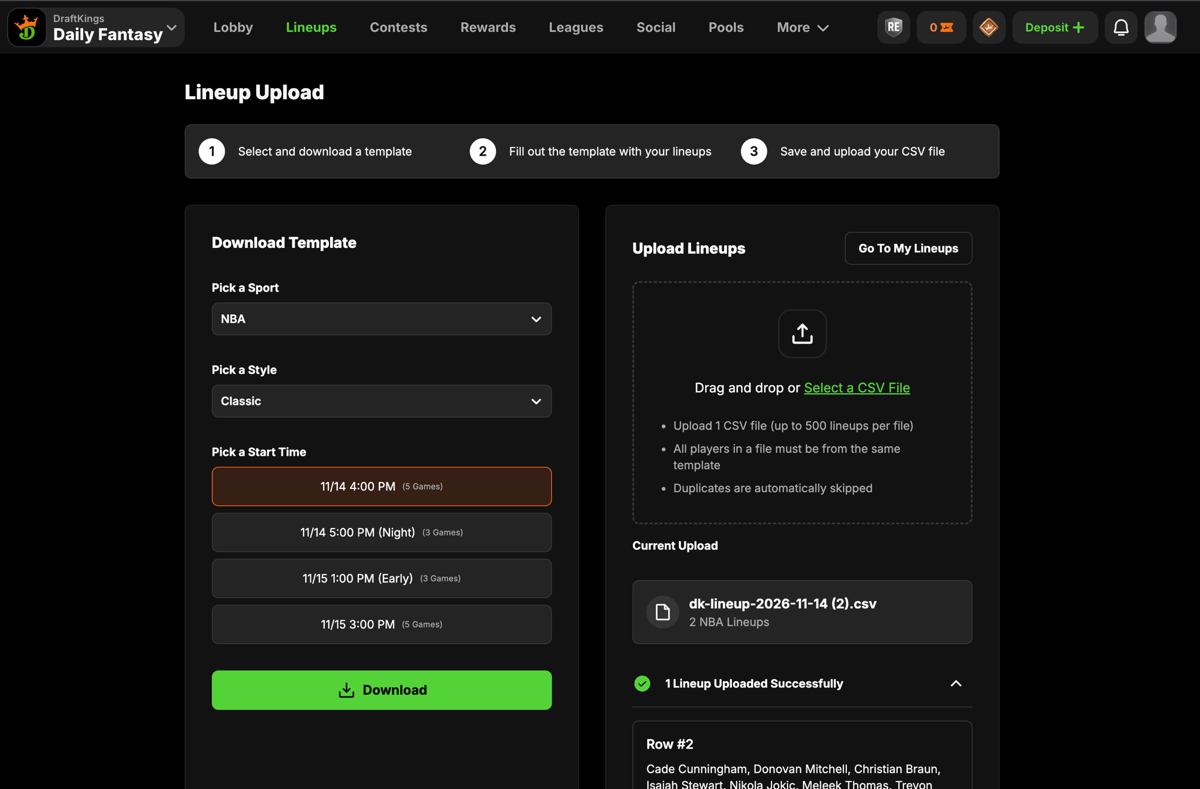
Go to DraftKings' own upload page: draftkings.com/lineup/upload, and drag the downloaded file into the Upload Lineups box. DraftKings reads the slate straight from the player IDs in the file, so there's nothing to pick there first.
Confirm it says "Lineup Uploaded Successfully."
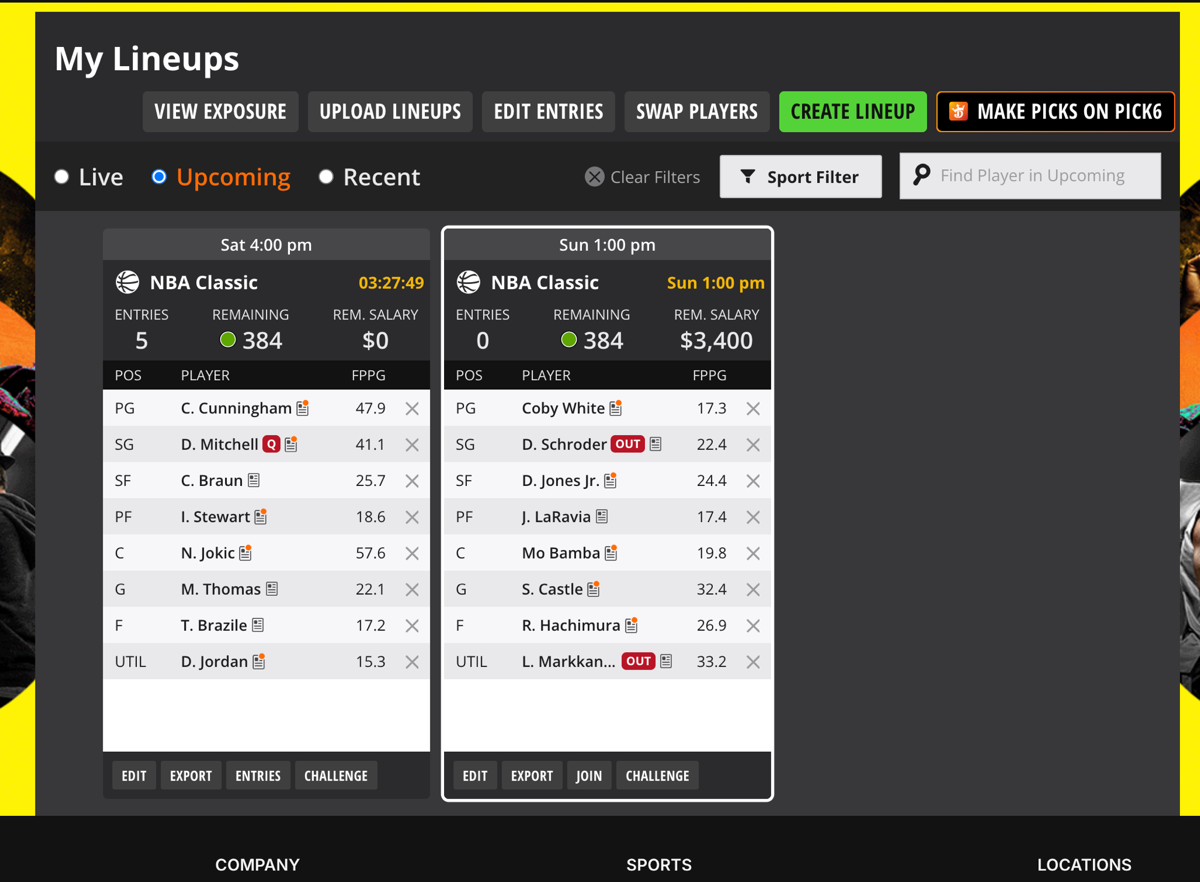
Click Go To My Lineups (or the Lineups tab) and find your lineup under its slate's card.
Click Join on that lineup to enter it into an available contest for that slate.
DraftKings' own Lineup Upload page -- drag your exported CSV into the Upload Lineups box on the right.My Lineups, grouped by slate. The "Join" button (right card) shows up on a lineup that hasn't entered a contest yet -- that's the step that actually commits you to one.
Two things worth knowing going in: this planner currently only shows slates
starting soon (it doesn't yet surface slates DraftKings has open for later days -- that's a
known gap we're working on). And the exact contest-picker screen behind "Join" hasn't been
documented here in full detail yet; we'll fill that in with the next update.
Picking a slate
DraftKings splits each day into separate Classic slates — for example an
early slate, a main slate with most of the night's games, and a late slate. Each slate has its
own player pool, salaries, and lock time, and a lineup can only mix players from one slate.
The row of slate cards near the top shows every upcoming slate with its lock time (Eastern) and
game/player count. Click a card to switch to it — the player pool and your in-progress
lineups are scoped per-slate, so switching slates starts you with a fresh lineup for that slate
(your previous slate's lineups are still saved and come back if you switch back to it).
Building a lineup
Use the position tabs (PG / SG / SF / PF / C / G / F / UTIL / ALL) to filter the pool to players eligible for a specific open slot.
Use the search box and team filter to narrow the list further.
Click Add on a player to place them in the first open slot they're eligible for. Click Remove (or the × next to their name in your lineup) to take them back out.
With Auto Advance Positions checked, adding a player automatically switches the position filter to your next open slot.
The sidebar tracks your remaining salary cap and average remaining salary per open slot as you
build. You can't add a player who would push you over the $50,000 cap.
Reading the pool table
Every column header has a hover tooltip, but here's the full picture of where each number
comes from:
Column / badge
What it means
Status badge
DraftKings' own injury designation (OUT, Q, etc.) next to a player's name. Hovering it shows the real injury reason text when available, scoped to that exact upcoming game so it can't show a stale reason from an old game.
OPP + win %
The opponent for this slate's game, plus that team's no-vig implied win probability computed from DraftKings' own moneyline odds. Moneylines only -- this reflects favorite/underdog, not total points.
FPPG
Fantasy Points Per Game: DraftKings' own season-average fantasy score for this player, under DraftKings' real NBA Classic scoring formula (points, rebounds, assists, steals, blocks, 3PM, turnovers, plus double/triple-double bonuses).
Trend badge
A ▲/▼ next to FPPG showing the player's real trailing-5-game fantasy score, computed from actual box scores, when it meaningfully diverges from their season average. Hidden below 3 games of sample size.
B2B badge
Flags that this player's team also played the day before this slate's games -- a fatigue/rest-risk signal, not a guarantee of reduced output.
VALUE
FPPG divided by salary, scaled per $1,000 spent. Higher value means more projected fantasy points per dollar -- useful for finding cheap players who still produce, to free up cap room for stars.
A note on data coverage: headshots, team logos, injury context, trend, and B2B
all depend on matching a DraftKings player to our own internal player records. A small number
of players (usually very recent call-ups) may not be matched yet, in which case these extras
just won't show for them -- their salary and base FPPG are unaffected.
Depth Chart view
Switching from Table to Depth Chart groups the same pool by
team, splitting each team into starters and bench, so a role change (someone's out, who steps
up) is visible at a glance instead of scanning a flat list.
Why some starters are tagged "proj.": DraftKings' own starting-lineup
confirmation usually isn't published far enough in advance for this page to catch it reliably.
When that's the case, starters are projected from each player's own trailing-5-game start rate
(from real box scores), ranked to the most likely 5 per team. A "proj." tag means it's our
estimate, not an official DraftKings-confirmed lineup -- treat it as informed, not certain.
One-click optimizer
⚡ Optimize Lineup replaces your current picks with the highest-projected
valid lineup it can find: maximizing total season FPPG, under the $50,000 cap, with players
from at least 2 games, built entirely in your browser (nothing is sent to a server to compute
this).
Players marked OUT are excluded -- their season average isn't a real projection for a game they won't play.
It optimizes for season-average FPPG, not the trend badge or recent form, to keep the result predictable.
On a very large pool it's time-boxed to stay fast; if it has to stop early it'll say so and still give you its best valid lineup found, which is typically very close to the true optimum.
Multiple lineups
The tab bar above your roster lets you build more than one lineup for the same slate (up to
20). Click + to add a tab, click a tab to switch to it, and use the × on
a tab to remove it. The same player can appear in more than one of your lineup tabs —
DraftKings itself allows this for multi-entry contests, so we don't block it either.
Saved lineups
Every lineup tab is saved automatically in this browser, scoped to the exact slate you built
it for, and reloads automatically next time you open the planner for that same slate. Nothing
is sent to a server or tied to an account. If a player you'd picked gets scratched from the
slate entirely since you last visited, that slot drops back to empty rather than silently
keeping stale data.
Exporting to DraftKings
Once a lineup tab is complete and valid, click Export Lineup CSV.
Download the file from the dialog that appears.
Open DraftKings' own lineup upload page: draftkings.com/lineup/upload, and drag the file into the Upload Lineups box. You don't need to pick a slate there first -- DraftKings reads it from the player IDs already in the file.
Once it says "Lineup Uploaded Successfully," click Go To My Lineups.
Find your lineup under its slate's card, and click Join to enter it into an available contest.
The file has one row per lineup tab, each player written as Name (ID) under
PG,SG,SF,PF,C,G,F,UTIL columns — confirmed working as a direct upload, no
DraftKings template needed. If DraftKings ever rejects a specific file, download their own
template from the upload page and copy each row's 8 players into its matching columns instead.
"Join" is the step that actually commits/pays for a contest slot. Everything
before that just gets your lineup into DraftKings' system -- no tool, including this one, can
do that final step for you.
The planner only shows slates whose lock time is still in the future -- if every slate for today has already locked, the earliest one shown will be for the next games on the schedule.
DraftKings' upload page shows slates for tomorrow that aren't on this planner yet
This is a known gap, not expected behavior. DraftKings opens slates for advance entry further out than this planner currently picks them up -- our data sync currently only pulls in a slate once it's within a few hours of its own lock time. We're working on widening that window; until then, a slate that exists on DraftKings may take longer to show up here than you'd expect.
The Export button is disabled
Export stays disabled until your active lineup tab has all 8 slots filled, is under the $50,000 cap, and includes players from at least 2 different games (a DraftKings Classic rule). The validation message above the Export button always says exactly what's missing.
The optimizer says it can't build a valid lineup
This happens when the filtered pool genuinely has no valid combination -- for example if too many eligible players at a thin position (like C) are marked OUT. Try clearing search/team filters first, since the optimizer only considers the players currently in the pool response, not anything you've filtered out of view in search.
Why do my salary numbers sometimes change between visits?
DraftKings updates salaries and player pools throughout the day, especially close to lock. That's exactly what the salary-change banner at the top of the planner is for -- it compares the pool against what you last saw for that exact slate and flags every real change.
Can this tool enter the contest for me automatically?
No, and it's not just a limitation of this tool -- DraftKings' own Terms of Use prohibit automated entry/bots, and no third-party DFS tool (including far larger ones) has an official integration for that. The CSV export is the full extent of what any outside tool can legitimately do; actually entering a contest always has to happen in DraftKings' own app or site.